Streamer Guide
How to set up and use the BracketFlow broadcast overlay in OBS Studio.
1. Quick Setup
Follow these 3 simple steps to get your stream overlay live in seconds.
Step 1: Login
Go to the Dashboard and log in with your Twitch account.
Step 2: Add Tournament
- Copy your tournament's URL from Start.gg (e.g.,
start.gg/tournament/my-event/events). - Paste it into the "Add Tournament" box on the Dashboard.
- Click Add. The system will start tracking matches immediately.
Step 3: OBS Integration
In OBS Studio (or your broadcasting software):
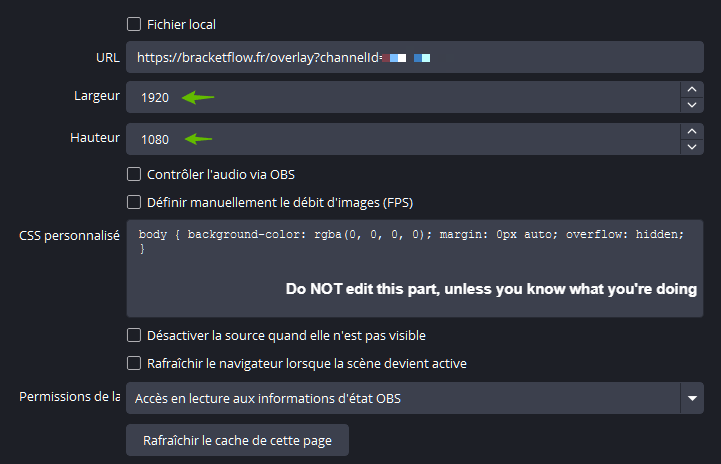
- Add a Browser Source.
- Paste your Global Link (found on the Dashboard).
- Set Width:
1920and Height:1080.
Crucial OBS Setting
You MUST uncheck the box "Shutdown source when not visible" (Mettre à jour le navigateur quand la scène devient active). The overlay needs to stay active in the background to receive real-time score updates.
2. Features
🎨 Dynamic Themes
The overlay automatically detects the active game and switches its visual style. Supported games include:
- Tekken 8
- Street Fighter 6
- Smash Ultimate
- 2XKO
If the game is not yet listed, an esports-grade generic dark theme is automatically applied.
⚡ Automatic Updates
- Scores & Sets: Updates automatically as tournament organizers report results on Start.gg.
- Upsets: Dynamic alerts highlight tournament upsets when a lower-seeded competitor wins.
- Eliminations: Displays exact bracket placement (e.g., "7th") when a competitor is eliminated.
3. Troubleshooting
- Delay: It can take up to 60 seconds for score updates to synchronize due to Start.gg API rate limits.
- Blank Screen? Ensure your URL is valid and you have an active event selected in the Dashboard.
- Country Flags: Player flags and region data are automatically populated from the global competitor registry.